
Chromebooks Explained: A Parent's Guide
If your child's school has sent home a device list, there's a good chance the word Chromebook is on it. Chromebooks are now one of the most common laptops in New Zealand classrooms. But what actually is a Chromebook? How is it different from a “normal” laptop? And is it the right choice for your family?
This guide should help.
What is a Chromebook?
On the outside, a Chromebook looks like any other laptop, with a screen, keyboard and trackpad. The difference is the software running inside it.
Every computer has an operating system, which is the main program that runs everything else. Kind of like it's foundation.
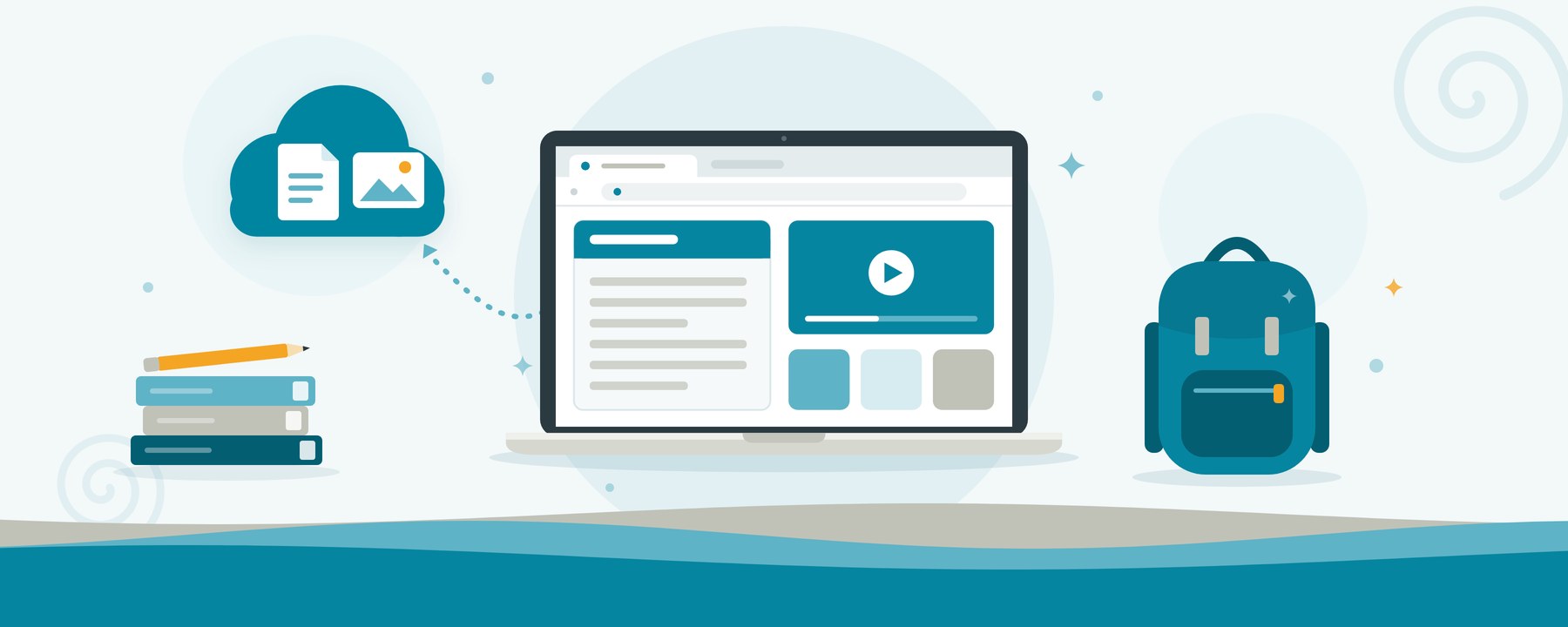
The easiest way to think of a Chromebook is as a laptop built around the internet. Most things happen inside the Google Chrome web browser: websites, email, YouTube, Google Docs and Google Classroom. Instead of saving work on the laptop itself, most files are saved “in the cloud.” That just means they're stored safely on Google's computers online, in Google Drive.
You sign in with a Google account (the same one used for Gmail). So if a Chromebook is lost or broken, your child can sign into another one and their schoolwork will be right where they left it.
Chromebooks can also run many Android apps (the same apps you'd find on an Android phone) from the Google Play Store.
Why do schools like them so much?
Many schools use Google's free education tools, like Google Classroom and Google Docs, and Chromebooks are designed to work hand-in-hand with these. They're also more affordable than a full laptop, simple to use, and easy for schools to manage and keep safe. For a school looking after hundreds of students, that's a winning combination.
The different types of Chromebook
Chromebooks come in two main “levels” and a few different shapes. First, two quick bits of jargon:
1. Standard Chromebooks
Around $350 to $750
These are the budget models. They're perfectly good for web browsing, Google Docs, Google Classroom and YouTube.
The catch? Many come with just 4GB of RAM and 32GB to 64GB of storage. With only 4GB of RAM, a standard Chromebook can start to feel sluggish when lots of tabs are open.
2. Chromebook Plus
Around $850 to $1,400
Chromebook Plus is Google's “step up” range. To wear the Plus badge, a Chromebook has to meet a minimum standard set by Google, including:
- A faster processor (the “brain” of the computer)
- At least 8GB of RAM
- At least 128GB of storage
- A sharp, full HD screen
- A better-quality webcam for video calls
They also come with Google's AI tools (Gemini) built in.
For older students, or anyone who keeps lots of tabs open, a Chromebook Plus is noticeably quicker and nicer to use.
Shapes and styles
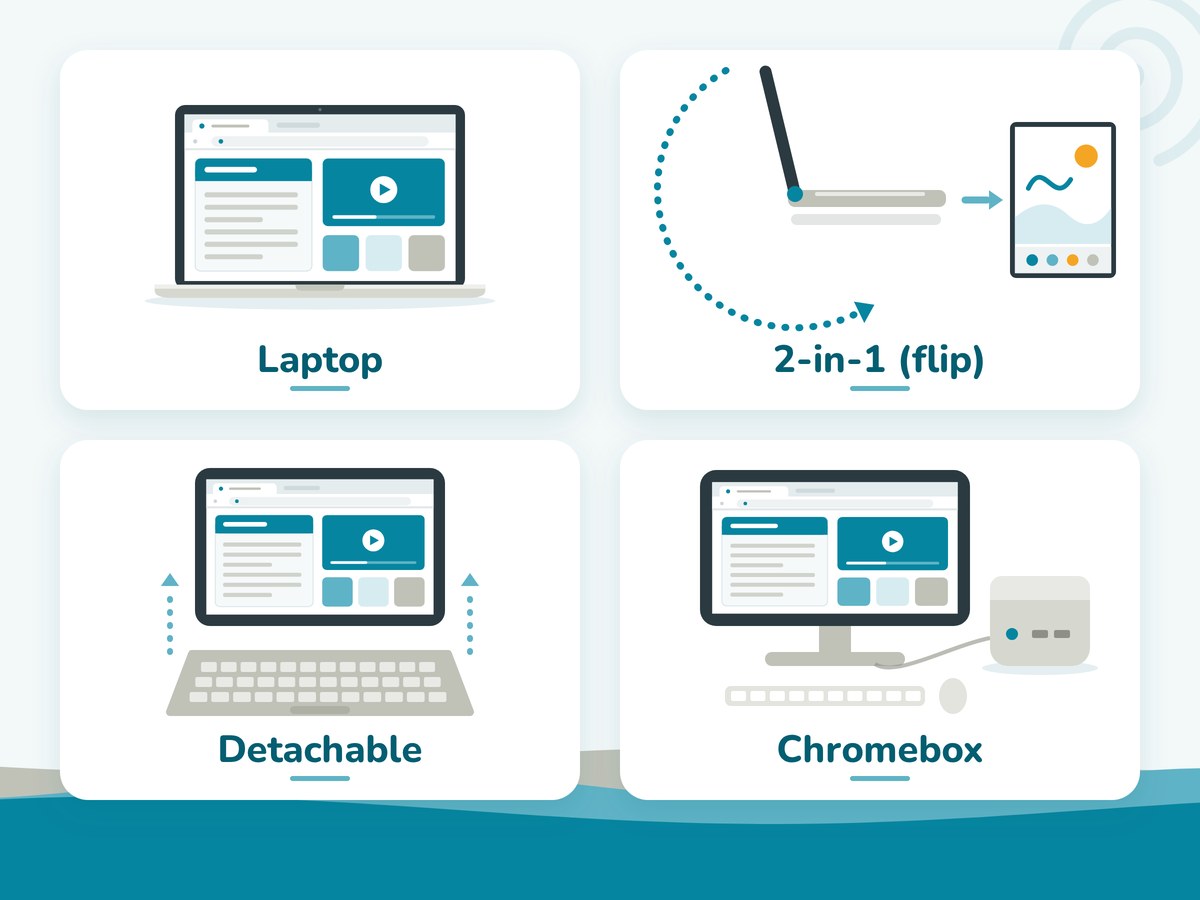
Standard laptop: Opens and closes like a regular laptop. Simple, and usually the cheapest.
2-in-1 (flip): Has a touchscreen and folds right back to become a tablet. Handy for younger kids and drawing.
Detachable: The keyboard clicks off, so it works as either a tablet or a laptop.
Chromebox: A small desktop computer box that plugs into a screen. Less common for families.
The benefits
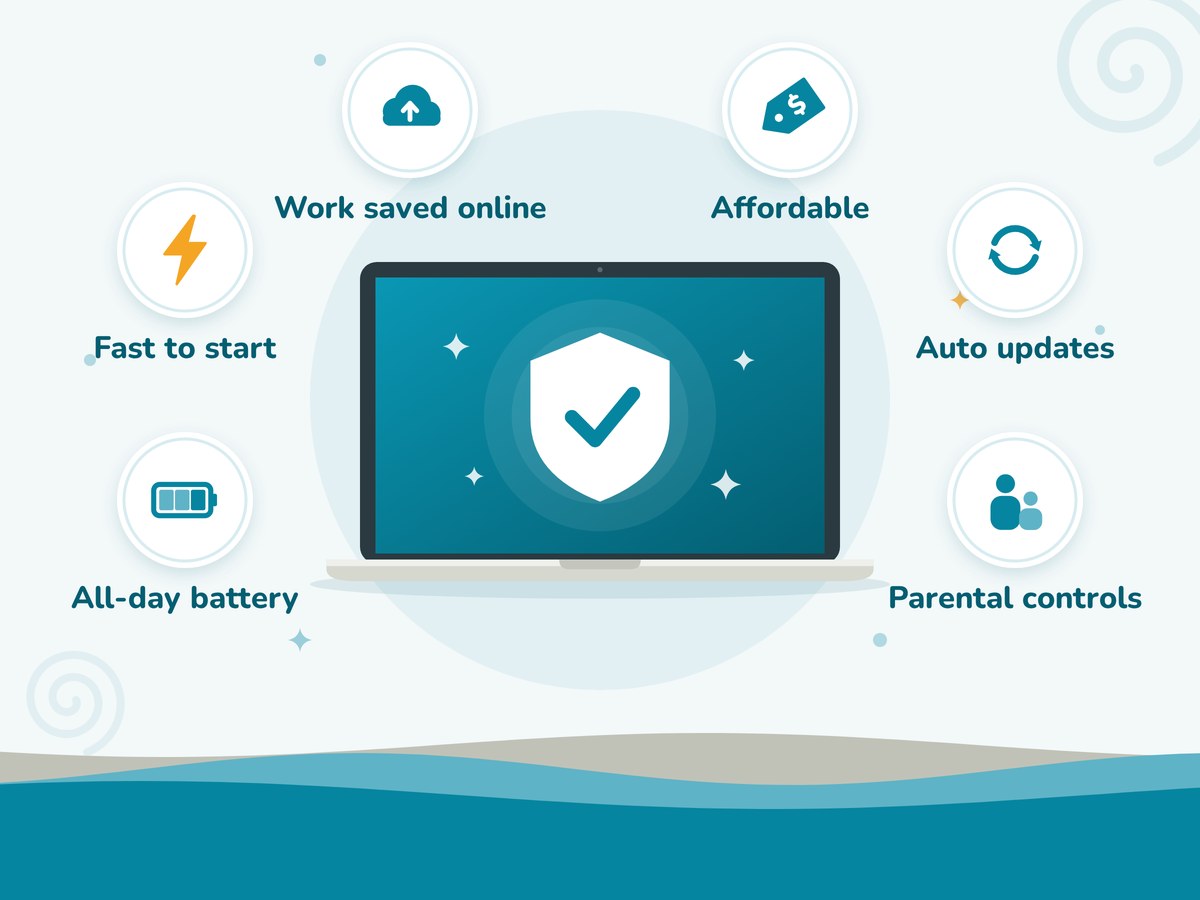
- Affordable. Chromebooks are generally cheaper than Windows laptops or MacBooks.
- Fast to start. Most turn on within seconds, so there are no long waits before class. Although most modern laptops are close to this.
- Simple to use. Fewer settings and menus means less for kids (or parents!) to get confused by.
- Safe and secure. Viruses are rare on Chromebooks, and security updates download automatically in the background about every few weeks.
- Low maintenance. If something goes wrong, you can reset a Chromebook to “as new” in minutes (Google calls this a “Powerwash”). Because work is saved in Google Drive, nothing important is lost.
- Good battery life. Many models will last a full school day on one charge.
- Parental controls. Google's free Family Link app lets you set screen-time limits, approve apps and filter websites on your child's account.
- Built for school. They work seamlessly with Google Classroom and Google Docs.
The limitations
The hidden “expiry date”
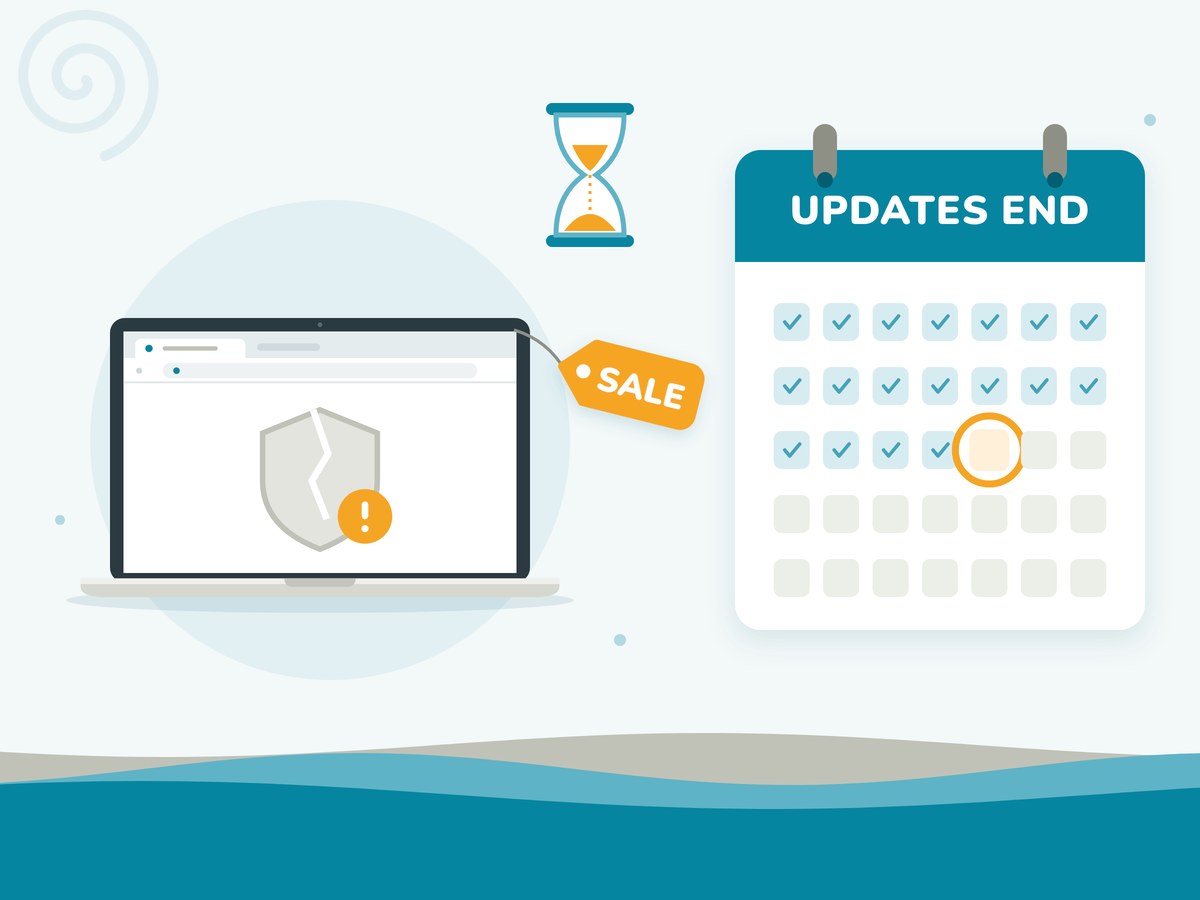
This is the one most parents don't know about.
Every Chromebook has an Auto Update Expiration date. After that date, it stops getting security updates. It will still turn on and work, but it becomes less safe to use as time goes on.
Google now promises up to 10 years of updates. Sounds great, right? But here's the trap: the 10 years starts from when that model was first released, not the day you bought it.
So that “bargain” Chromebook on special might be an older model with only a few years left.
So, is a Chromebook right for your child?
✓A Chromebook is a great fit if:
- Your child is at primary, intermediate or early high school
- Their school uses Google Classroom
- It's mainly for homework, research, emails and videos
- You want something affordable and low-fuss
!Think twice if:
- Your teen is taking senior subjects that need specialist software
- You want one computer the whole family can use for everything, including Windows programs
- Many high schools require student to purchase a Windows based laptop.
It's worth asking yourself: would you rather save $300 today, or have a Chromebook that still feels quick in three years' time? Or do I need to spend more to get a Windows based laptop that will have the capacity for any project?
Our top tips before you buy
Not sure which one to get?
Email us the links to the Chromebooks you're considering, and we'll give you free, no-obligation advice.
Here to help,
The Team at Computer Help NZ
160b Selwyn Street, Christchurch
www.chnz.co.nz | (03) 666-4357
P.S. A Chromebook can do a lot of things, but sadly it still can't make your kids do their homework. We're working on it.